 Noctave
First, sheet music you have the right to use
Noctave reads the sheet music you give it; it doesn't look for it on your behalf. Use sheet music you own or have the right to use:
- sheet music you bought in digital form, when the seller provides a MusicXML or MIDI file for your personal use;
- official sheet music from a music publisher, downloaded from its website or store, on the terms it sets;
- public-domain sheet music: a work whose rights have expired (in France, that of a composer who died more than 70 years ago), in an edition that is free as well. The Mutopia Project publishes thousands of pieces under free licenses, with their MIDI file, and the free sheet music on this website downloads as MusicXML.
Which file to choose
- MusicXML (
.musicxml,.mxlor.xml): the whole score, as notation software saves it. Noctave draws the falling notes from it and the score, in sync, on a tablet. It's the format to prefer when you have the choice. - MIDI (
.midor.midi): the notes and their rhythm, without the score. Noctave turns them into falling notes, and you choose the hand of each track. With Noctave Plus, the correction editor can write it out as a score. - PDF or photo: a picture of the score. Noctave doesn't read it directly; that's the job of the scan, below.
Noctave recognizes the format from the content of the file, whatever its name. A file can weigh up to 16 MB; a MusicXML or MIDI file is usually a few hundred KB.
Import a file, step by step
- Copy the file to your tablet: downloaded in the browser, received by email, or copied from a computer into the Downloads folder.
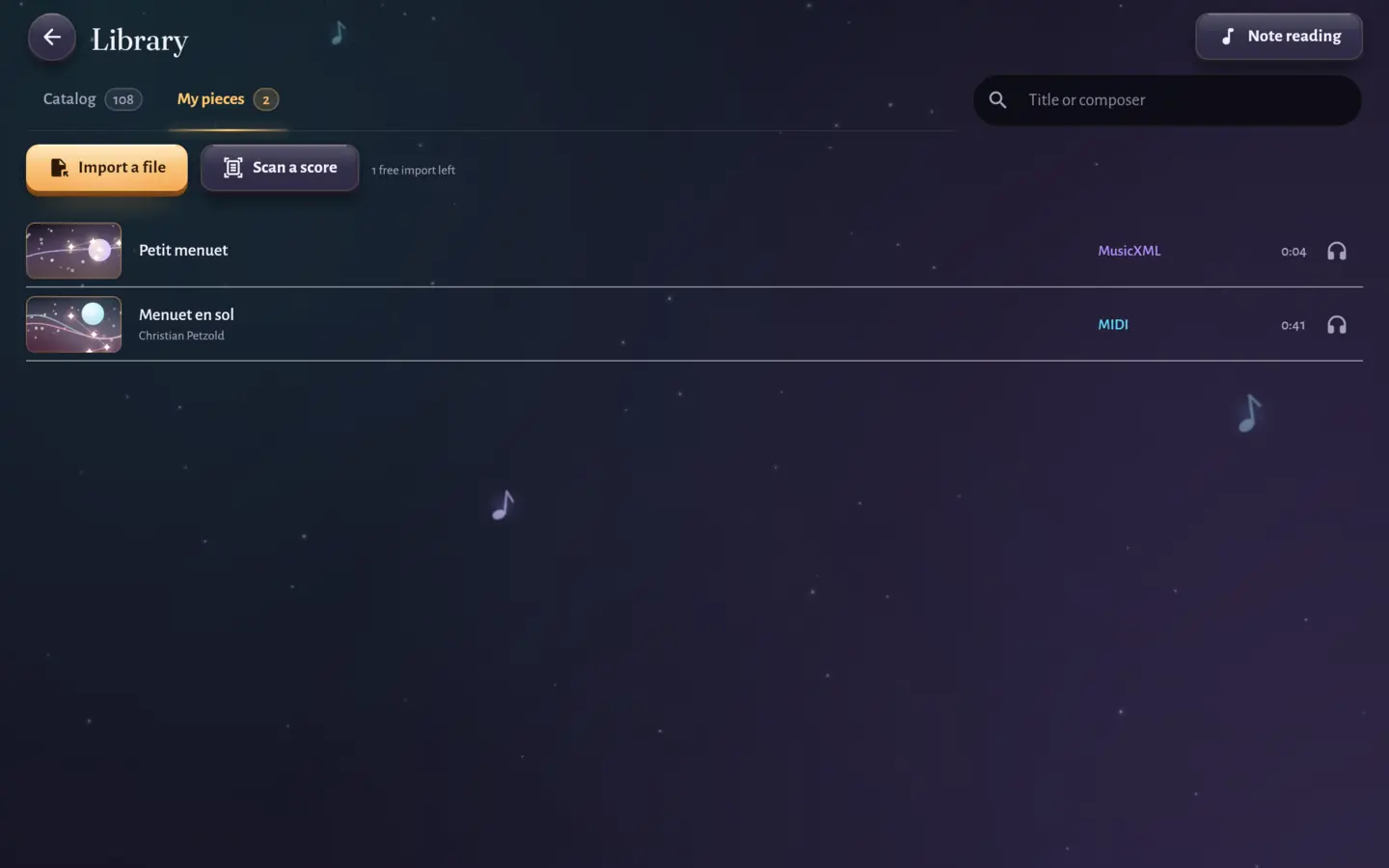
- In Noctave, open the Library from the home screen, then tap Import a file.
- Pick the file in the Android file picker: Downloads, or any other place on the tablet.
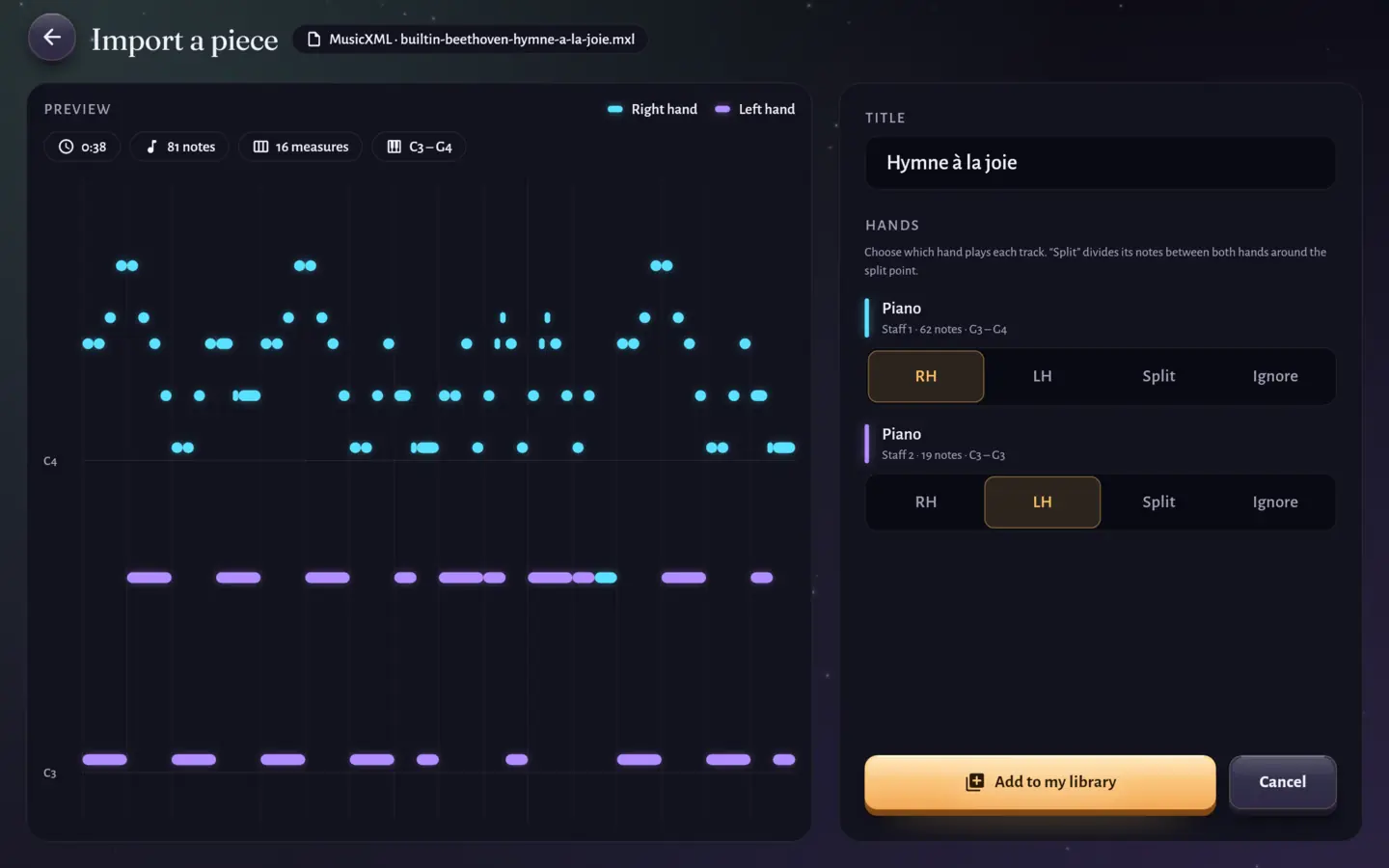
- Noctave reads the file and shows a preview of the whole piece, colored by hand, with its number of notes and measures.
- Check the title, which you can change, then the hand of each staff or track: right hand, left hand, Split (the notes are shared between both hands around the split point, which you move) or Ignore.
- Tap Add to my library. The piece joins the My pieces tab, ready to learn.
Play your piece
An imported piece opens in Learning mode, with all its aids: wait mode, tempo from 25 to 150%, a loop over a few measures, separate hands, metronome and fading of the falling notes. It isn't part of the journey of the Game mode: no level to unlock, it's yours.
On a tablet, a MusicXML file shows its score above the falling notes. A MIDI file has none, and on a phone the screen is too small for it: the falling notes stay on their own. To move from one to the other little by little, read Falling notes or sheet music.
Three free imports, then Noctave Plus
Without Noctave Plus, you can import three pieces; the Library tells you how many free imports you have left, and those you added stay yours. Noctave Plus makes imports unlimited and opens the correction editor: tap a note to change its pitch, length or hand, add or remove a note of a chord, or play a measure again on the keyboard to rewrite it.
With a Noctave account, which is optional, your imports follow you to your other devices (files of 4 MB at most).
Photograph sheet music: the scan, coming soon with Noctave Plus
The scan will read printed sheet music: you photograph it, Noctave sends it to its server, which turns it into a MusicXML file. It will be part of Noctave Plus and will need an account and an Internet connection. It will open in an upcoming version; its screen is already in the app, and here is how it will work.
- In the Library, tap Scan a score, then New scan.
- Tap Take photos: Google's document scanner, on your tablet, finds each page, straightens it and cleans it up; you can adjust the frame by hand. Up to 16 pages, in order. You can also import a PDF or images (JPEG, PNG, TIFF).
- Send the pages. Noctave reads the score on its server, about twenty seconds per page; you can leave the screen, Noctave tells you when it's ready.
- Check the draft: its score and its falling notes. Fix the title, the composer, the tempo or the hands, remove a badly read measure, then add it to your library.
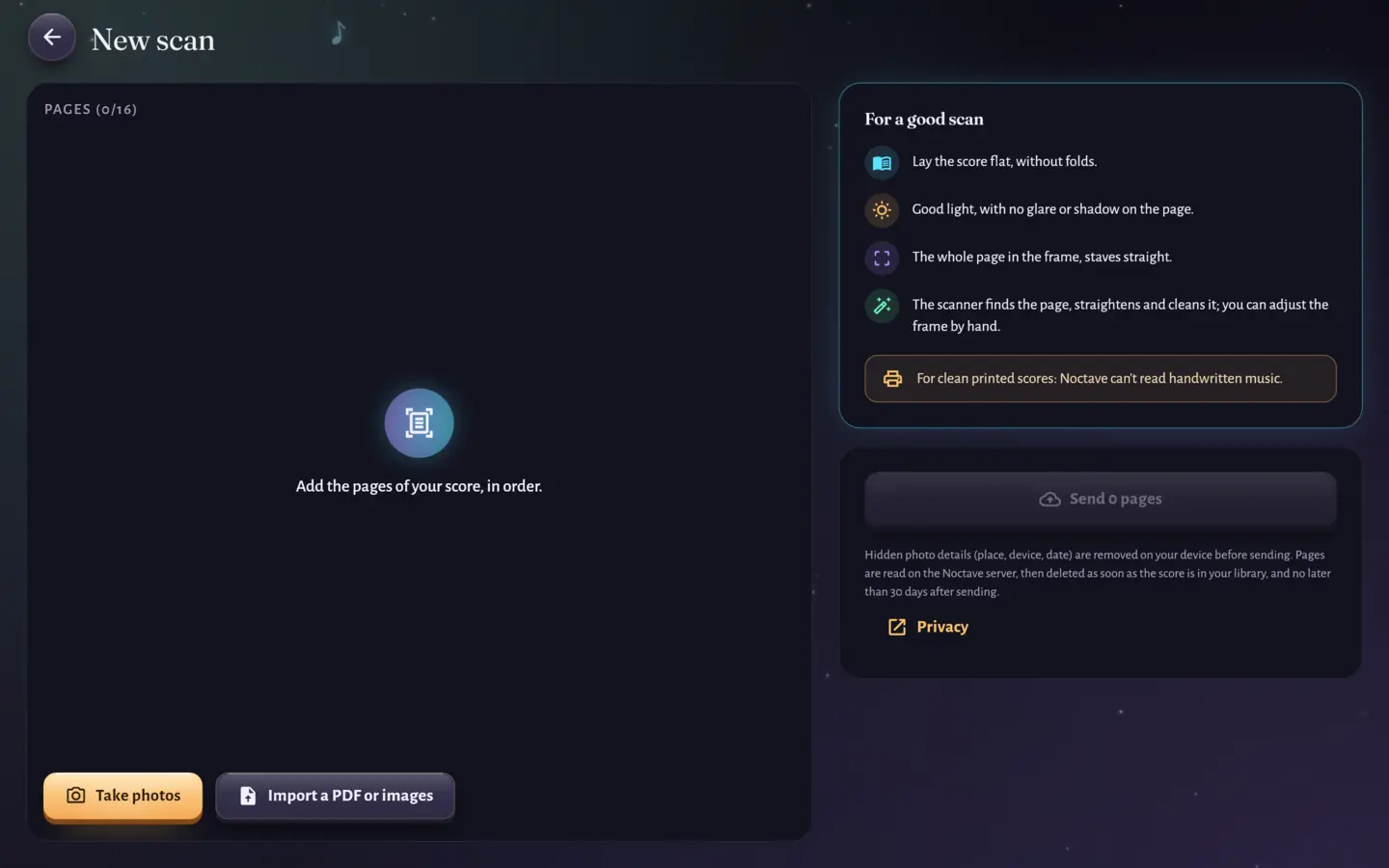
For a good scan: the sheet flat, light without glare or shadow, the whole page in the frame. The scan will read printed, clean sheet music, not handwritten scores. Your pages will be erased from the server as soon as the score is in your library, and at the latest 30 days after sending.
If the import doesn't work
- “This file is neither MIDI nor MusicXML”: it's often a PDF or a picture. Look for the MusicXML or MIDI version of the sheet music.
- “This file could not be read”: it may be damaged, or a variant Noctave doesn't know yet. Export it again from your notation software, or try another version.
- “No notes to play”: the file only holds drums or rests.
- “File too large”: above 16 MB, the file isn't imported.
- Both hands are mixed up: on the import screen, choose Split for that track and move the split point up to the first note of the right hand.
To choose among the pieces already in Noctave, read Which piece to play for your level.