 Noctave
What you need
- A tablet or phone running Android 7.0 or later. Noctave is designed for a tablet standing on the music rest, in landscape.
- A digital piano or keyboard that sends MIDI: through a USB socket (often labeled “USB to Host” or “USB MIDI”), through a round five-pin MIDI socket (“MIDI OUT”), or over Bluetooth MIDI.
- The cable that matches that socket, below. No other app to install.
Over USB: the cable for the piano's socket
- Square USB socket (type B), common on digital pianos: a USB-B to USB-C cable, or to micro-USB depending on your tablet. If your cable ends with a USB-A plug (rectangular), add an OTG adapter (USB-A female to USB-C male).
- USB-C or micro-USB socket, frequent on small keyboards: a data cable between the keyboard and the tablet, with an OTG adapter if the plugs don't match.
- Only round MIDI sockets: a USB-MIDI interface, a cable with two round plugs on one side and a USB plug on the other. The piano's MIDI OUT must go to the input of the interface (on many interfaces, the plug labeled IN: follow its manual). For Noctave to play the piano too, plug the other one into the piano's MIDI IN.
Then:
- Switch the piano on, then plug the cable into the tablet.
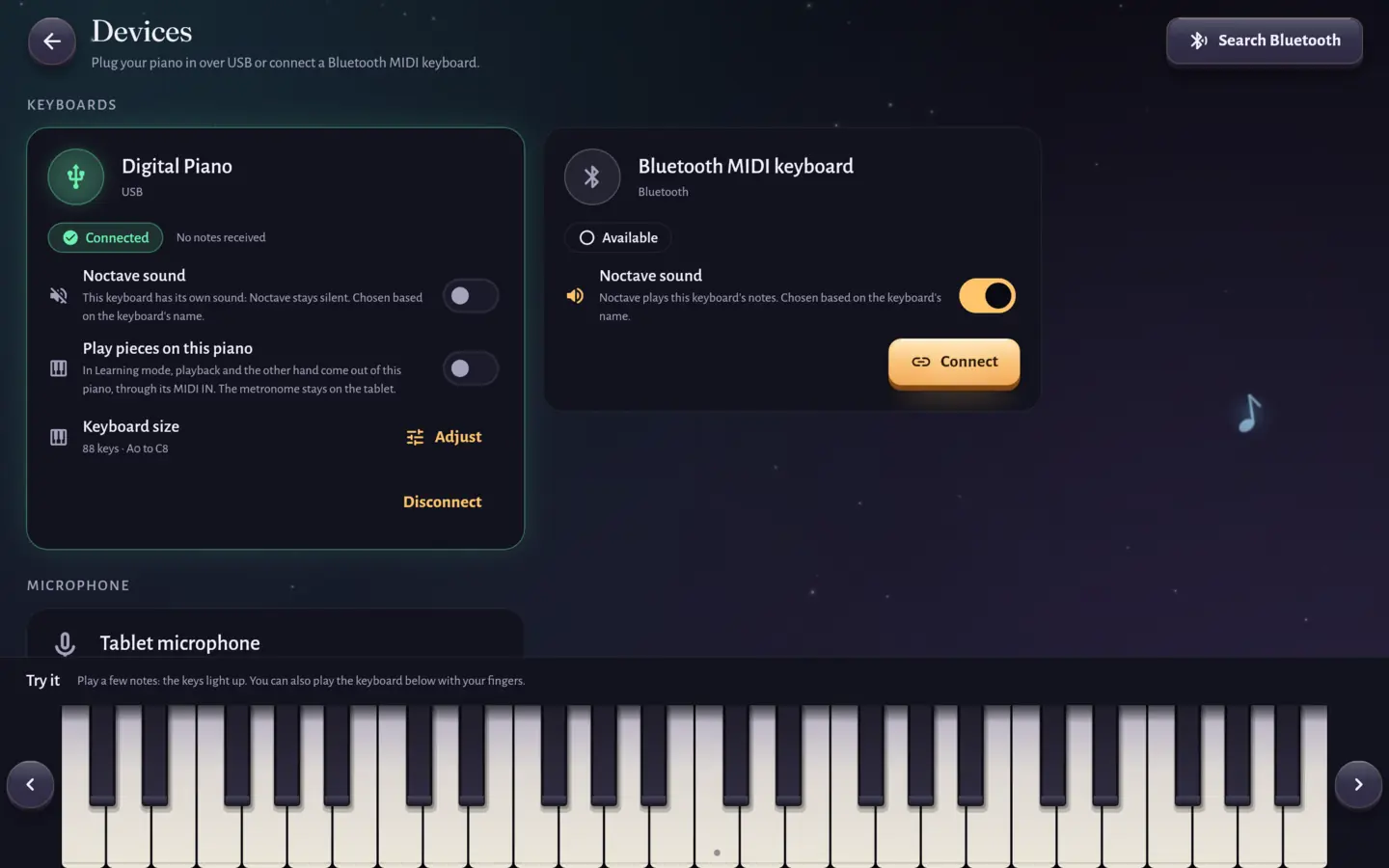
- Open Noctave: the piano connects by itself, without a search. The home screen shows the connected keyboard; tap it to open the Devices screen, where it's marked Connected.
- In Devices, play a few notes: in the Try it card, the keys light up on the screen.
Over Bluetooth MIDI
- Switch the keyboard on and turn on its Bluetooth MIDI if it needs it (its manual says so).
- In Noctave, open Devices and tap Search Bluetooth. The first time, Android asks for the “Nearby devices” permission (“Location” on Android 11 and earlier): Noctave needs it to find Bluetooth keyboards.
- The keyboard shows up in the list: tap Connect.
- The next times, Noctave reconnects it by itself as soon as it's on and in range.
The useful settings
Each keyboard has its settings on the Devices screen, kept for next time.
- Noctave sound: a digital piano has its own sound, so Noctave stays silent not to double your notes; a keyboard without a speaker is played by Noctave. The choice is made from the keyboard's name, and you can change it.
- Keyboard size: 25, 37, 49, 61, 76 or 88 keys. Noctave reads it from the keyboard's name when it can, then adjusts it from the notes you play. On a small keyboard, each level of the journey has its adapted version, which tells you in advance how many notes it moves.
- Calibrate latency (Play latency card): you play a key on a beat, Noctave measures your keyboard's delay and removes it from your keystrokes before judging them.
- Play pieces on this piano: if your piano receives MIDI, the playback and the other hand of Learning mode come out of its speaker, through its MIDI IN; the metronome stays on the tablet.
Common problems
The piano isn't found over USB
- Check that the cable carries data: some cables only charge.
- On the piano, use the “USB to Host” socket, made for a computer or tablet, not the “USB to Device” socket, which takes a USB stick.
- The tablet must support OTG, that is, power a device plugged into its socket; most recent tablets do. Try the adapter with a USB stick to check.
- Unplug the cable, switch the piano on, then plug it in again.
- A USB-MIDI interface sometimes has a switch (computer or tablet): set it as its manual says for a tablet.
The tablet no longer charges
Plugged into the tablet's only socket, the piano takes the charger's place. A USB-C adapter or hub with charging (Power Delivery) lets you plug both at once.
The Bluetooth keyboard doesn't show up
- The tablet's Bluetooth must be on: Noctave offers to switch it on.
- If the “Nearby devices” permission was refused, tap Open settings on the Devices screen and grant it.
- A keyboard already connected to another device (a phone, a computer) is often no longer visible: disconnect it from that device.
- If it was paired in Android's Bluetooth settings, forget it there, then search again from Noctave.
Notes sound twice, or not at all
Set Noctave sound for this keyboard. Check the piano's volume too, and the tablet's media volume (its volume keys).
The sound comes late
A Bluetooth speaker or headset delays the sound by 0.15 to 0.3 s, and Noctave says so in a banner. Plug in wired headphones, or leave the sound to your piano. Some Bluetooth keyboards also show up as a speaker: disconnect that speaker in Android's settings. If it's your keystrokes that seem judged late, calibrate the latency.
The keyboard has fewer keys than the piece
Noctave tells you when a piece spans more than your keyboard. In Game mode, it offers to shift the octave when that's enough, or to play the adapted version of the level; in Learning mode, the “Fold octaves” option brings notes that are too low or too high back onto your keyboard.
Without a digital piano
The touch screen is enough to try: the keyboard shows on the screen and plays with several fingers. The microphone, for an acoustic piano, is in preparation: it already recognizes one note at a time in note reading.
Is your piano connected? Next, read Getting back to the piano after years or Which piece to play for your level.